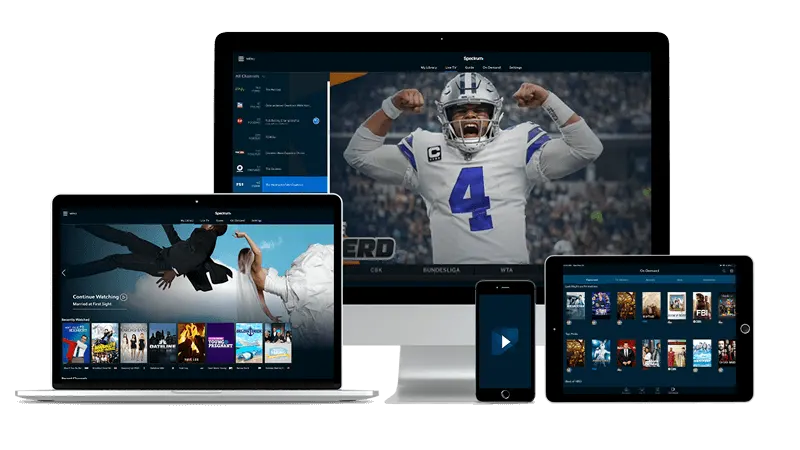
Channel Categories on IPTV, Explained Plainly
You pick up the remote on a Tuesday evening, open the channel list, and suddenly you're staring at labels like VOD, linear, PPV, and a row of flags you don't recognize. None of that was in the signup email. This guide replaces the jargon with plain descriptions of what each category actually holds, so you can find what you want without having to guess.
The good news is that once you understand the logic behind the groupings, navigating any IPTV service on any device feels the same. The names shift; the structure does not.
What the main categories actually contain
Most IPTV services split their content into a handful of groups. The names vary slightly between apps and boxes, but the logic stays the same across all of them.
Live channels are exactly what they sound like: television as it airs right now. News, sports, entertainment, and kids' channels all sit here. You tune in and see whatever is broadcasting at that moment, the same way you would with a traditional aerial or cable box. If a Premier League match or a UFC card is live, it appears in this section at the scheduled time.
VOD stands for video on demand. This is the library of films and series you can start at any point you choose, not at a fixed broadcast time. Think of it as a shelf you browse: pick something, press play, and it starts from the beginning. The VOD section tends to be large, covering recent releases and older titles organized loosely by genre or decade.
Series sometimes lives inside VOD and sometimes gets its own tab, depending on how the service is set up. When it has a dedicated section, episodes are grouped by show and season, which makes it easier to follow a run of episodes without hunting through a flat, unordered list of titles.
Some services add a sports category that pulls live sports channels out of the main live list and groups them together. That saves scrolling when you know you want sport but haven't decided which one. NFL, NBA, NHL, and international competition like the Champions League or World Cup all end up here rather than scattered through a general entertainment feed.
Kids is another common breakout. Rather than filtering a long live list, families with children often find it faster to open one dedicated section where the content has already been separated from adult programming.
None of these categories are technical inventions. They follow the same logic as the sections in a video store or the tabs in a streaming app you already use. The jargon makes them sound complicated, but each one answers a simple question: what kind of thing are you in the mood for right now?
Three things people assume that turn out to be wrong
Assumption one: more categories means more content.
Not necessarily. A service with six clearly labeled sections can carry the same content as one with two. The categories are filing cabinets, not measures of size. What matters is what's inside each one, not how many drawers the cabinet has. A large sports tab might contain only a handful of channels; a small-looking live section might hold several hundred. Browse inside each category before drawing conclusions about depth.
Assumption two: the category names are standard across apps.
They are not. One app calls it 'VOD,' another calls it 'Movies,' a third buries films under 'On Demand.' If you open TiviMate on a Chromecast with Google TV and then open the same account on a MAG box through its portal, the layout looks different even though the content is identical. The app draws the menus; the service provides the streams. This is worth keeping in mind when you read reviews or watch setup videos: the reviewer's screen may not match yours, but the content underneath is the same.
Assumption three: a channel in an unexpected category is an error.
Sometimes a local news channel appears under a country flag rather than under 'News.' Sometimes a sports documentary series sits in VOD rather than in Sports. Providers organize content in ways that make sense to them, and that logic is not always obvious from the outside. If you can't find something by browsing, search by name before assuming it isn't there. Almost every player app has a search bar that scans the full list regardless of which category a channel sits in.
These three assumptions cause most of the confusion people run into during their first week with an IPTV service. Letting go of them makes the whole experience much calmer.

Quick answers
- What is the difference between live TV and VOD on an IPTV service?
Live TV shows whatever is broadcasting at this moment on a given channel; you join the stream mid-flow, the same as traditional television. VOD is a library of films and series that you can start from the beginning at any time, with no fixed schedule.
- Why do channel categories look different depending on which app I use?
The app controls the menu layout, not the service. Two apps connected to the same account can display the content in completely different ways, with different section names and different sorting logic, while the underlying channel list stays identical.
- If I can't find a channel in the category I expect, what should I do?
Use the app's search function and type the channel name directly. Providers sometimes file channels under a country tab or a language group rather than a genre category, so searching by name is faster and more reliable than browsing section by section.
- Do I need special equipment to access all the channel categories?
No special hardware beyond a compatible device and a home internet connection. The full channel list, including every category, is available on phones, tablets, smart TVs, streaming sticks, and MAG boxes once you've entered your login details in a supported app.
Country and language groups
Beyond content type, most services also sort channels by country or language. You might see a tab labeled US, UK, or a flag representing another region. Inside each one, you find the local mix of news, entertainment, and sports that broadcasts there.
This matters most in households that watch content in more than one language. Rather than scrolling through hundreds of channels organized only by genre, you can jump straight to the country group and browse a much shorter, more relevant list. A household that watches both English and Spanish content, for example, benefits from two clean lists rather than one long mixed one.
Country groups also matter for sports fans who follow leagues from outside their own region. Someone in the US who follows the Premier League will often find those channels grouped under a UK or international sports tab rather than the main US live section.
When you're comparing services before committing, it's worth checking whether the country groups you care about are actually present, and whether the channels inside them are live feeds rather than empty placeholders. The clearest way to verify that is to try the service directly on the device you plan to use most. A free trial, where one is offered, lets you check the actual channel list before any payment is involved.
How the program guide fits into the picture
Inside the live channel category, most apps display a grid that shows what's on now and what's scheduled to come next. This is the electronic program guide, usually abbreviated to EPG. It looks like a spreadsheet: channels run down the left side, time slots run across the top, and the current program is highlighted.
The EPG is not a separate category of content. It's a view that sits on top of the live channels you already have access to. When you're browsing live TV, switching to the guide view just gives you a different way to look at the same channels — useful when you want to see what's coming up rather than flipping through one at a time.
If the guide looks empty, shows wrong titles, or displays times that don't match what's actually playing, the fix is usually a data refresh inside the app's settings rather than a problem with the channels themselves. TiviMate, for instance, has a dedicated EPG settings screen where you can trigger a manual update. IBO Player and IPTV Smarters Pro have similar options. A few minutes after the refresh, the guide populates correctly.
Buffering during live channels is a separate issue, and it has nothing to do with categories or the guide. It's almost always a network condition: the connection between your router and the device isn't delivering data fast enough to keep the stream smooth. Why evening buffering happens and how to fix it covers the specific causes and solutions in detail, including what to check on the router side and what to adjust inside the app.
The service itself reaches your TV, phone, tablet, or streaming stick over your home internet connection — no satellite dish and no cable contract involved. After payment, login details arrive by email, and you enter them into whichever app you use. The full channel list, including every category described here, loads from that point. MAG Box IPTV is designed to work across the devices most households already own, so you're unlikely to need new hardware to get started.